PeakHour Advisor
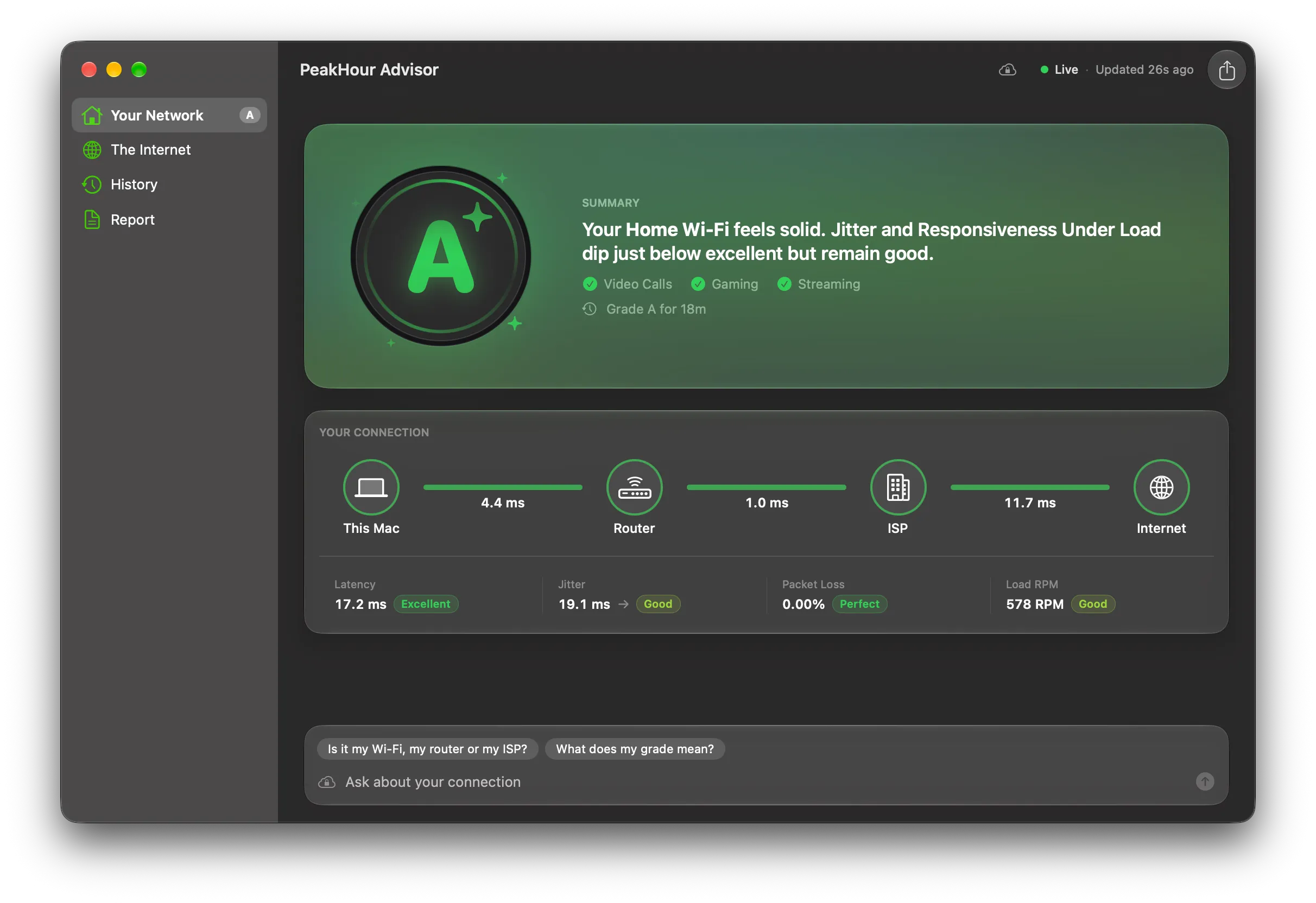
The PeakHour Advisor turns PeakHour’s measurements into a grade and a plain-language diagnosis. It tells you what is wrong with your connection, where the problem starts, and what you can try.
It has its own window, with four pages:
| Page | What it shows |
|---|---|
| Your Network | Your grade, the path from this Mac to the internet, and the issues that hold the grade back. |
| The Internet | Problems on the route to a single site, a map of where each site answers from, and the route your traffic takes to it. |
| History | Your grade over the last hour to 90 days, and every speed test from the last year. |
| Report | A formatted report to send to your ISP or to support. |
With Private Cloud Compute turned on, you can also ask questions about your connection at the bottom of every page.
Open the Advisor
Section titled “Open the Advisor”- Click the grade on the Internet Dashboard, in the Simple or the Detailed view.
- Choose Window → PeakHour Advisor, or press ⌥⌘A.
- Right-click (or Control-click) the PeakHour icon in the menu bar, then choose PeakHour Advisor.
The window updates live. The top-right corner shows Live and the time of the last update. PeakHour grades your connection every 30 seconds, and it keeps recording the grade while the window is closed.
A small number on the rim of the grade shows how many issues hold the grade back. Its color matches the worst of them. The same number appears on the grade in the Advisor window, so you can see where the click leads.
The grade
Section titled “The grade”The grade runs from A+ down to F. PeakHour works it out with fixed rules from your latency, jitter, packet loss, speed, and responsiveness under load. The Advisor never guesses the grade, and every grade below an A has at least one reason on the Your Network page. See How the grade works.
Export
Section titled “Export”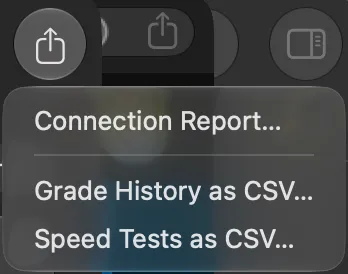
The Export button in the toolbar saves:
- Connection Report… — the report, as a Markdown file.
- Grade History as CSV… — the grade history for the period that you last chose on the History page.
- Speed Tests as CSV… — the speed tests for the period that you last chose on the History page.
Requirements
Section titled “Requirements”- macOS 26 (Tahoe) or later.
- AI Advisor turned on in Settings → Dashboard. It is on by default. When it is off, the PeakHour Advisor menu items are hidden and PeakHour stops recording the grade history.
The grade and the reasons come from PeakHour’s own rules, so the Advisor works without Apple Intelligence. When Apple Intelligence is available, its on-device model rewrites the explanations so they read naturally. PeakHour checks every sentence the model writes: a sentence that changes or adds a number is dropped, and PeakHour shows its own wording instead.
Privacy
Section titled “Privacy”By default, the Advisor runs entirely on your Mac. Your measurements go to Apple only if you turn on Private Cloud Compute. Even then, your Wi-Fi name, your Mac’s name, and the names and addresses of the monitors you added stay on your Mac.
The route to each site and the map use the ISP Information lookups, which you turn on separately.
Was this page helpful?
Found something wrong, unclear, or out of date? Let us know and we'll fix it.