Your Network
Your Network is the first page of the PeakHour Advisor. It answers two questions: how good is your connection right now, and if it isn’t great, why not.
The grade card
Section titled “The grade card”
The large card at the top shows your grade, from A+ to F, with a one-sentence summary. Its color follows the grade. See How the grade works.
Under the summary:
- Video Calls, Gaming and Streaming — a check mark when your connection handles the activity comfortably, and a cross when it doesn’t. A question mark means PeakHour needs a speed test to judge it.
- Grade A for 2 h 14 min (for example) — how long the current grade has held. It appears after 10 minutes. Restarting PeakHour or putting the Mac to sleep starts the count again.
- Needs a speed test · Run Now — shown while an activity is marked with a question mark. Click Run Now to start a test straight away.
Issues identified
Section titled “Issues identified”When the grade is below an A, the card lists each reason under Issues identified. Every reason has:
- What you notice, in plain language, with the technical term in brackets — for example Everything takes a moment to start (latency).
- Where it starts — one of:
- On your Wi-Fi
- At your router or its cable (on a wired Mac)
- On your Wi-Fi or at your router, when PeakHour can’t tell the two apart
- At your ISP
- Past your ISP — further out on the internet
- In your VPN or Past your VPN server, when a VPN carries all your traffic
- An explanation of what the measurement means for you, with the measurement and its band.
- A step to try, where one helps — for example Turn on Smart Queue Management (also called SQM or QoS) on your router.
When a trend is clear, the explanation also says whether the problem has grown or eased over the last 5 to 15 minutes.
Your connection
Section titled “Your connection”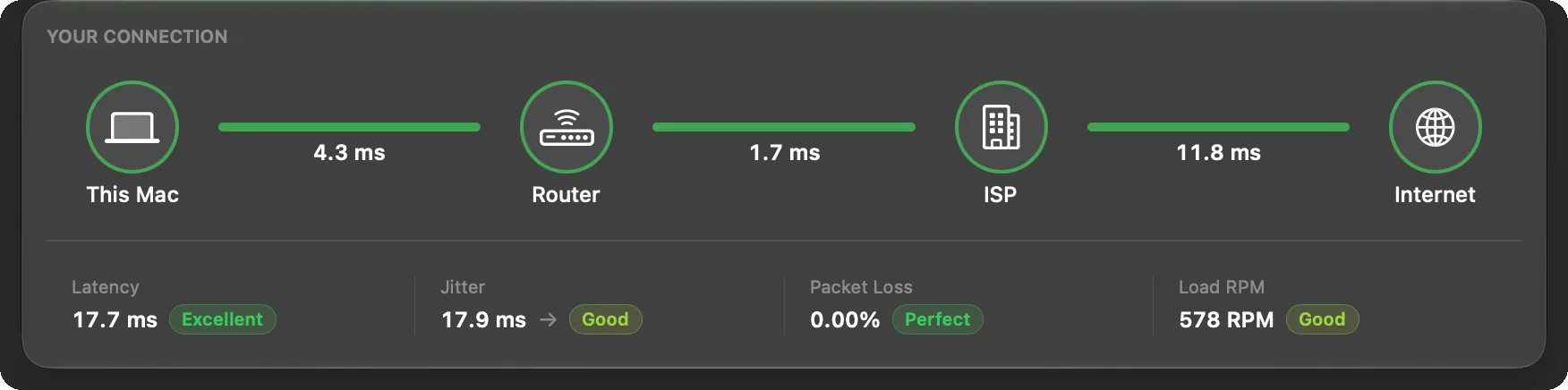
The second card shows the path your traffic takes, from This Mac to your Router, your ISP, and the Internet, with the latency of each link. A link changes color when one of the issues points at it, and shows the name of that problem under its latency.
Under the path are your Latency, Jitter, Packet Loss and Load RPM (responsiveness under load), each with its band.
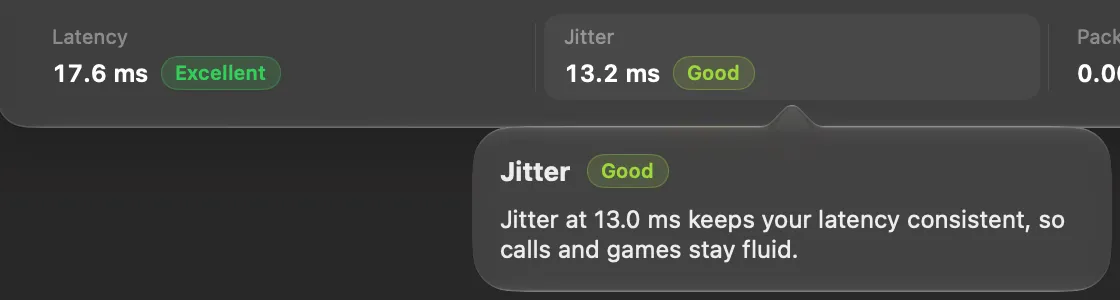
- Click a figure to read what it measures and what your value means.
- An arrow beside latency, jitter or packet loss shows whether it is rising, falling or steady over the last few minutes. Hover over the arrow for the details. The arrows appear after about 5 minutes of readings.
When a VPN is on
Section titled “When a VPN is on”When a VPN carries all of your traffic, the path reads This Mac → Router → VPN → Internet. The link after your router is the tunnel, and the location and the delays past it belong to the VPN server, not to your home connection. A problem inside the tunnel is placed In your VPN, and its step to try is to turn the VPN off for a moment or pick another server.
PeakHour still measures your router directly over Wi-Fi or Ethernet, so a problem on your own network keeps pointing at your Wi-Fi or your router.
Was this page helpful?
Found something wrong, unclear, or out of date? Let us know and we'll fix it.