Ask about your connection
With Private Cloud Compute turned on, the PeakHour Advisor can answer questions about your connection, and a larger Apple model writes its explanations.
Private Cloud Compute
Section titled “Private Cloud Compute”Private Cloud Compute runs a larger Apple Intelligence model on Apple’s servers. Apple designed it so that your data is used only for your request and isn’t kept. See Apple’s Private Cloud Compute article.
Turn it on
Section titled “Turn it on”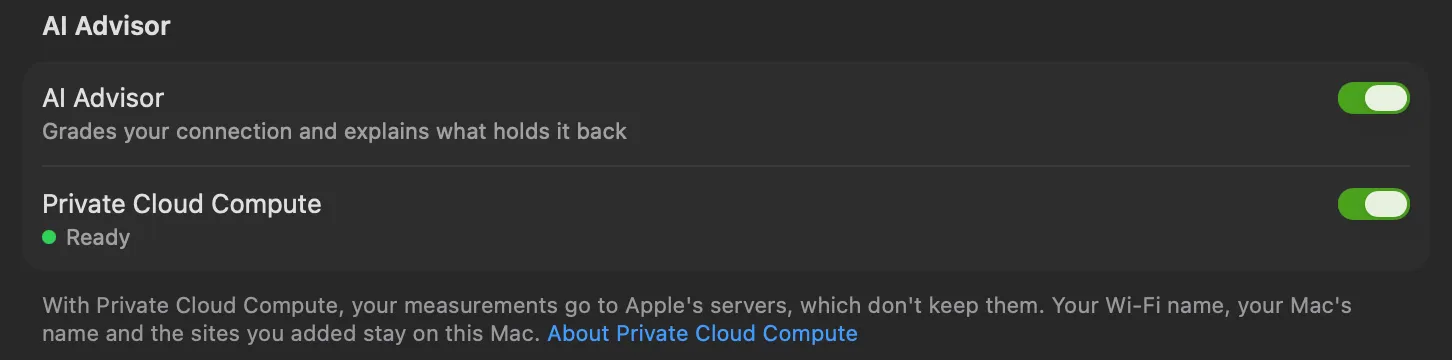
- Open Settings → Dashboard.
- Under AI Advisor, turn on Private Cloud Compute.
It is off by default, and it needs macOS 27 or later with Apple Intelligence turned on. The line under the switch shows its status:
| Status | Meaning |
|---|---|
| Ready | Private Cloud Compute is available. |
| Nearing today’s limit | You have used most of today’s requests. |
| Daily limit reached | No more requests today. The line shows when the limit resets. |
| Not available on this Mac | This Mac or this version of macOS can’t use Private Cloud Compute. |
| Apple Intelligence not ready | Turn on Apple Intelligence in System Settings, or wait until its models finish downloading. |
When Apple offers more requests, an Increase Limit… button appears near the limit.
What it does
Section titled “What it does”
With Private Cloud Compute on, the larger model:
- writes the explanations in the Advisor window — the summary and the explanation under each issue;
- explains the pattern of drops on the History page;
- answers your questions (below).
The grade, the reasons, the places and the measurements never change: PeakHour works them out itself, and it drops any sentence that changes or adds a number. The dashboard’s own summary is always written on your Mac.
A small cloud-and-lock icon in the Advisor toolbar shows that Private Cloud Compute wrote the current text. If Private Cloud Compute can’t answer — for example when the daily limit is reached — the on-device model takes over, and a short note in the toolbar says why.
What leaves your Mac
Section titled “What leaves your Mac”When Private Cloud Compute is on, PeakHour sends your measurements and the Advisor’s findings to Apple’s servers. Before anything leaves the Mac, PeakHour replaces:
- your Wi-Fi network name;
- your Mac’s name;
- the names and addresses of the monitors you added, for example a work VPN;
with placeholders, and puts the real names back into the answer on your Mac. The names of public sites, such as GitHub or Zoom, are sent as they are.
When Private Cloud Compute is off, nothing goes to Apple, and the Advisor runs entirely on your Mac.
Ask a question
Section titled “Ask a question”
With Private Cloud Compute on, a field at the bottom of every Advisor page reads Ask about your connection. Type a question and press Return — for example:
- Is it my Wi-Fi, my router or my ISP?
- Why were there dips at 6 PM?
- Why is GitHub faster than Zoom?
Before your first question, the field suggests up to three, starting with your first issue if you have one.
What the answer knows
Section titled “What the answer knows”
Each question goes with:
- the current report — your grade, its reasons, your measurements and your Wi-Fi details;
- the pattern of grade drops over the last 24 hours;
- the latency, jitter and packet loss of each site;
- the route to each site, router by router, once you have opened The Internet page in the window.
You can ask a follow-up, which can refer to the earlier answers.
How PeakHour keeps answers honest
Section titled “How PeakHour keeps answers honest”- The model answers only from those facts, in a few short sentences, and says may or likely rather than claiming a cause it can’t prove.
- PeakHour checks every number and time in the answer. An answer that uses one that isn’t in your measurements or your question is replaced with PeakHour can’t answer that from its measurements.
- A question that isn’t about your network gets PeakHour answers questions about your network and your connection.
The conversation isn’t stored. Click the close button above it to clear it; closing the window deletes it too. When the daily limit is reached, the field turns off until the limit resets.
Was this page helpful?
Found something wrong, unclear, or out of date? Let us know and we'll fix it.